Google My Business: 7 tips for SEO Optimization
Our tips overview:
- Advantages of the Google My Business listing: Key SEO Effects
- Photos: Tips for selecting pictures
- General information: Optimization of heading and main category
- Google Reviews: Tips for more reviews
- Product search: Cool new feature
- Posts: Promotion of News
- Company description: Tips for implementation

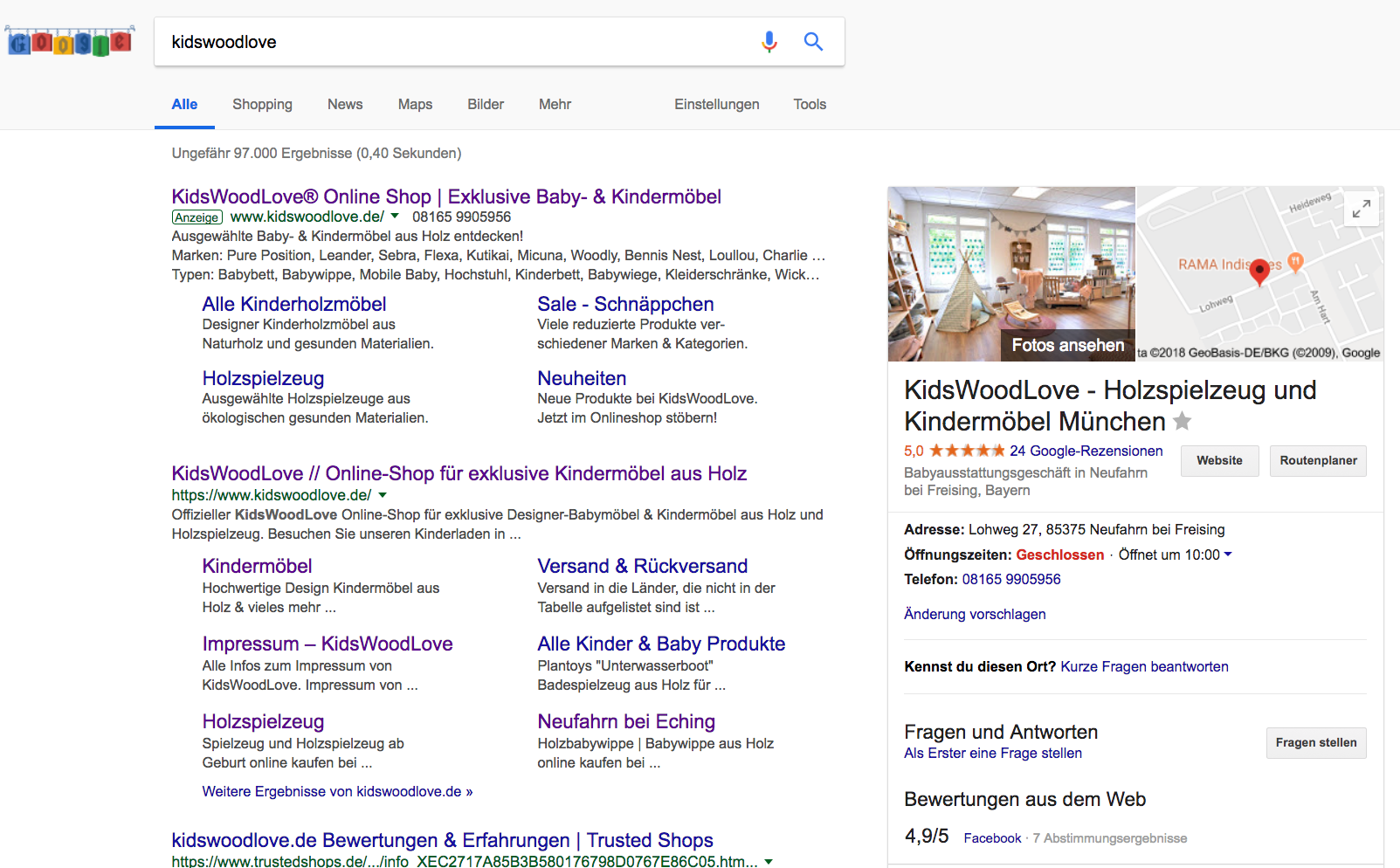
Google My Business listing is a free Google service, which allows you to display the most important information about your company in a compressed, clear and highly visible way at the top of the Google search. We explain why you should create a Google My Business listing for a good SEO ranking and how it works! Here you will find answers to frequently asked questions.
1. Advantages of the Google My Business Listing
- Local Visibility: Regional companies benefit especially because Google includes information about the company in its local search. The customer can immediately see opening hours, location and distance and can view the route via the direct link to Google Maps.
- Branding: The company appears as a brand and conveys a professional image to the customer.
- Ranking for brand and organic keywords: The Listing appears both in the explicit search for the company and in the general search for products and services.
2. Photos
- good quality
- JPG or PNG
- 10 KB – 5 MB
- 720×720 pixels
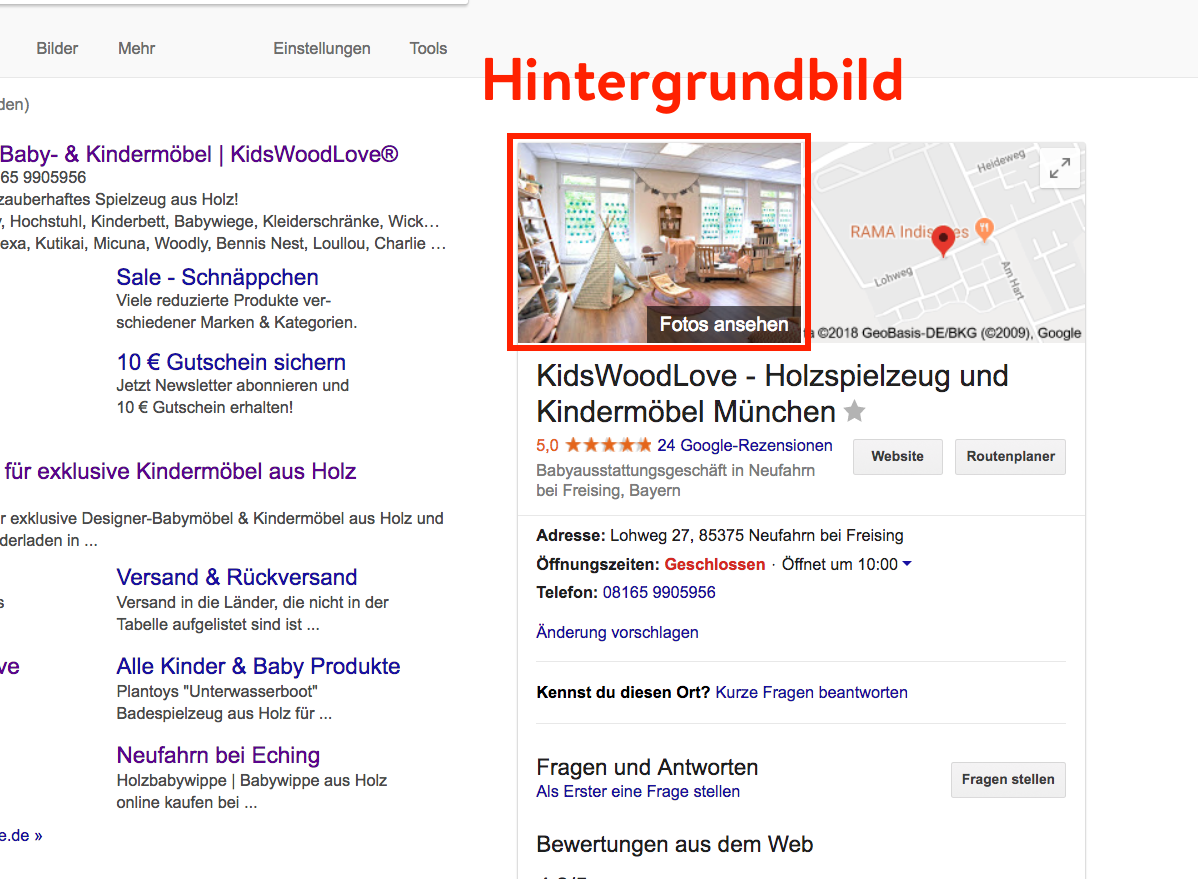
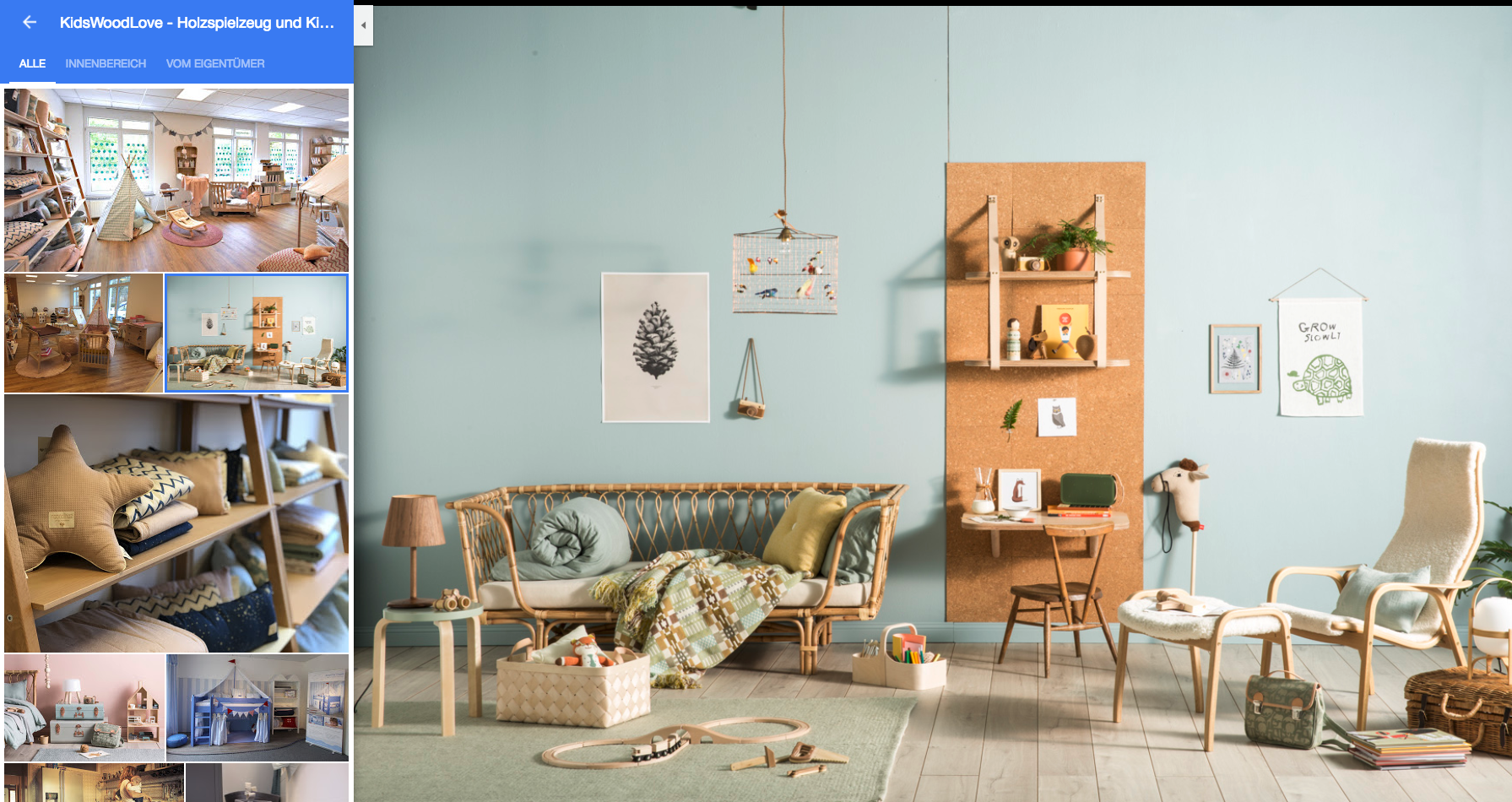
The order cannot be determined manually. Photos with good quality are displayed first. The background image appears as the first photo and should represent the company well. It is possible to use one photo as a background image, but if other photos are of better quality they will be preferred.
Following aspects can be promoted with the photos – depending on the USPs of the company:
- the production
- the workplace
- the employees
- the building
- satisfied customers
3. General information
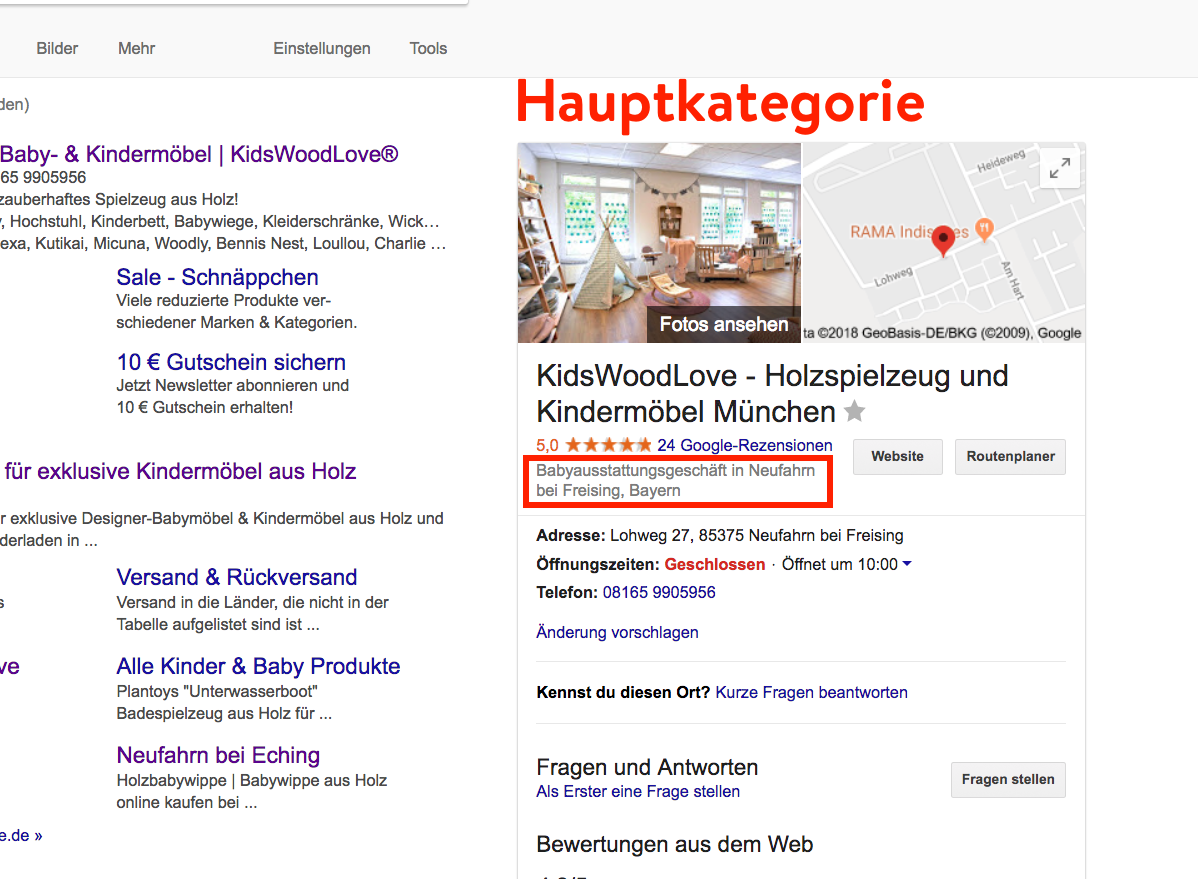
The information must be the same as that on the website and must be up-to-date. Include important keywords with the company name so that the customer immediately knows what kind of company it is. The category describes the type of company. The main category is visible in the listing. However, you should definitely add other categories, as Google will include them in search queries and improve the SEO ranking.
4. Google reviews (ratings)
Ratings are important for a good image and customer loyalty. Here are some tips on how to get reviews for your company:
- QR-Code:You can print this code on flyers, business cards or posters. Flyers are well suited as packaging inserts, for example. When scanned with a smartphone, customers are taken directly to the review form.
- E-Mails: After a transaction, send e-mails with a request for rating. Enter the link that leads directly to the reviews.
Example: Thank you for choosing one of our products. We want to offer our customers high quality products and first class customer service. We would be very pleased if you leave a customer review on Google. This review is an incentive for us to continue improving our products for you. We thank you for your support and hope to see you again soon. Many thanks!
- Website: Place the QR Code and the link to the review page on your website. For example under “Contact” or at the bottom of the page.
- Own reviews: Some customers feel uncomfortable giving a review if no reviews are available yet. Therefore, please create the first reviews yourself. Make sure that the reviews are positive, but still sound credible.
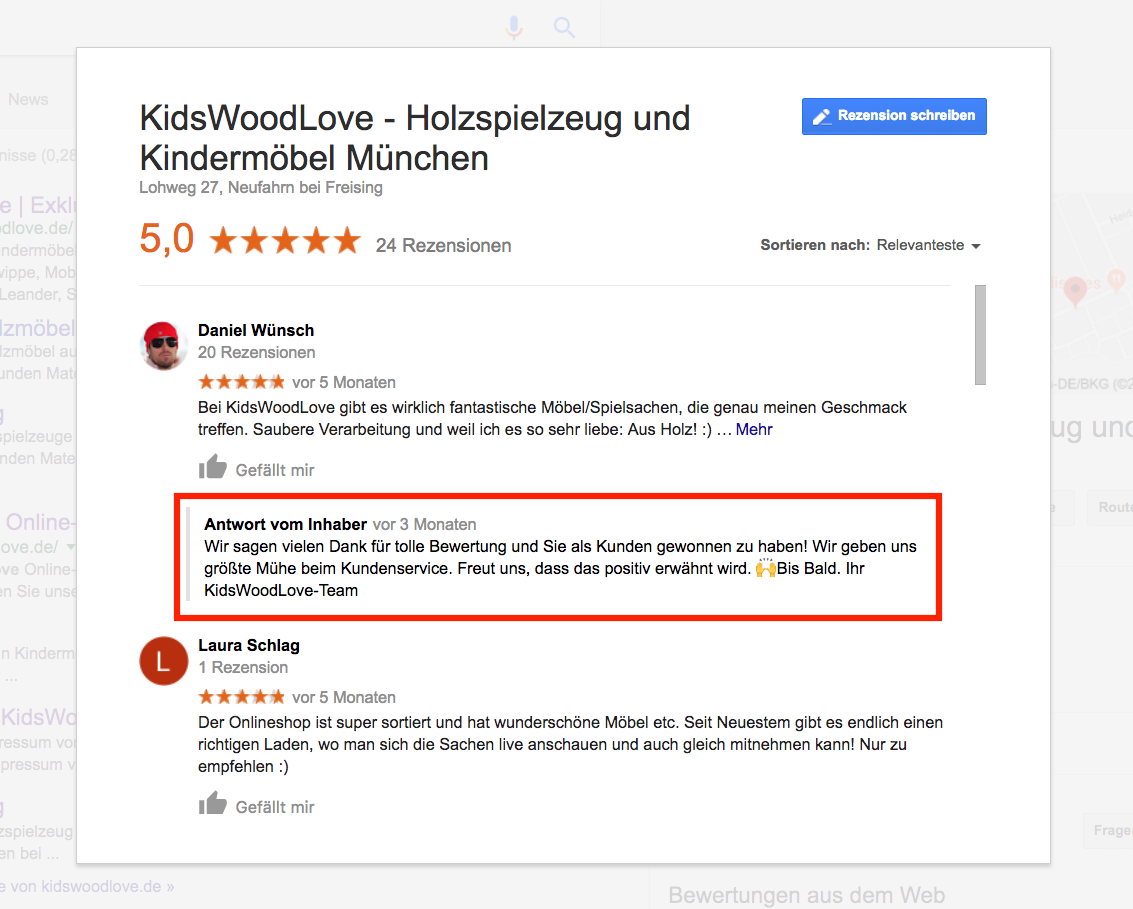
- Reaction to reviews: It is also important that you respond to reviews. Thank them for positive feedback and respond to criticism in an objective and calm manner.
5. Product search
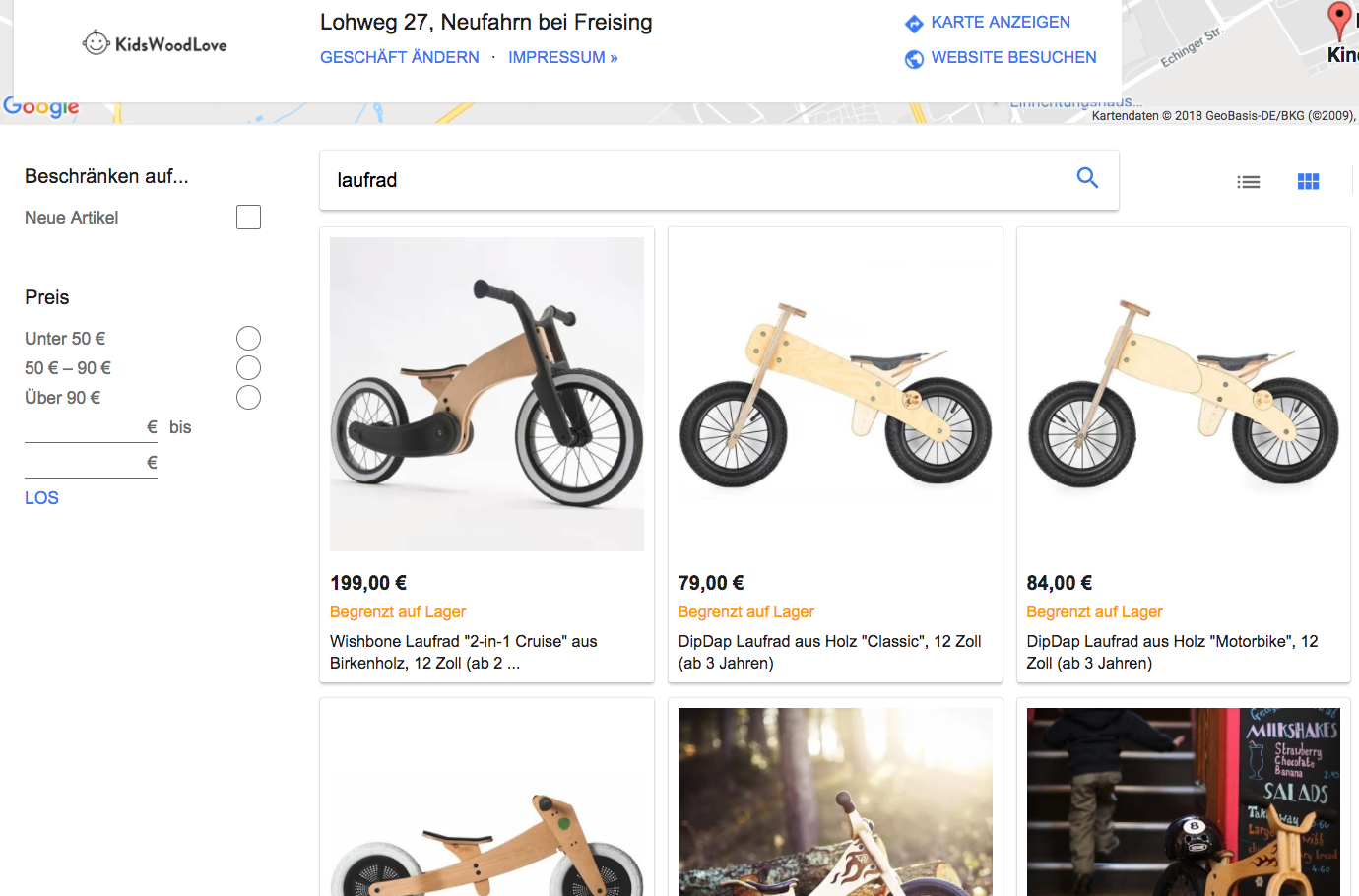
The product search can only be set up if the website has an online shop. Customers can then search for a product directly in the Google My Business listing without having to visit the website.
6. Posts
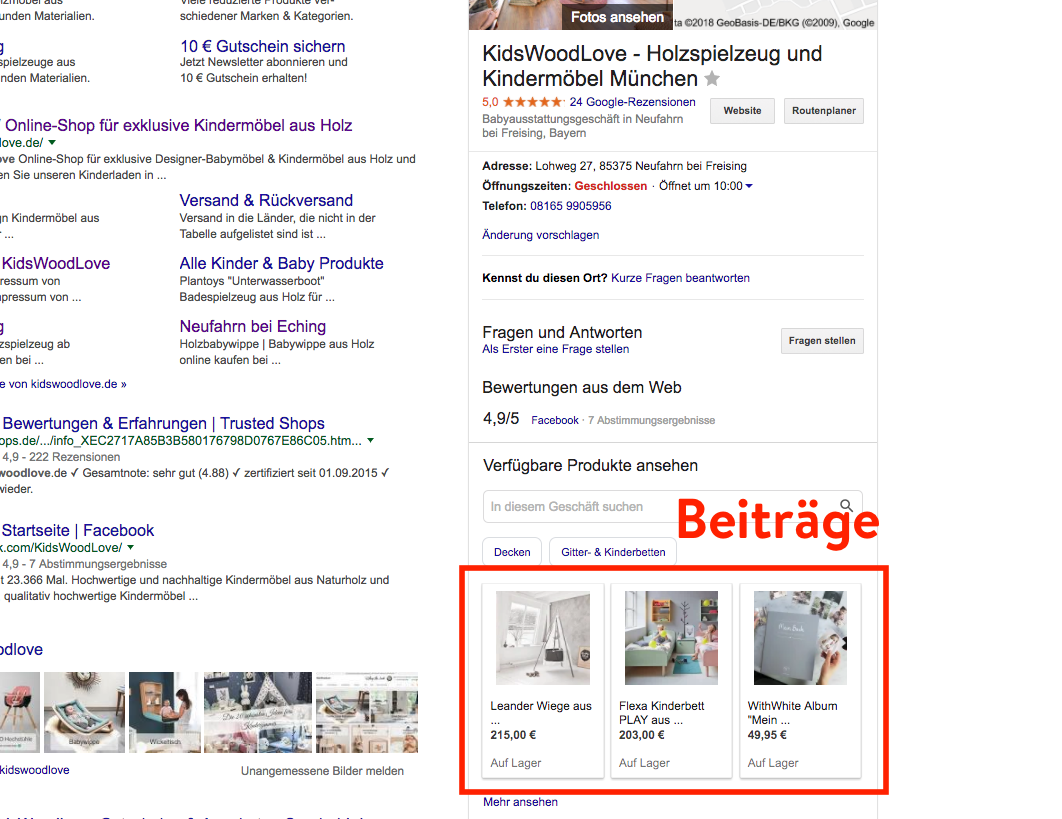
First select whether it is a “New Function”, an “Event”, an “Offer” or a “Product”. Then add a photo or video. The description should be brief and clear. It is better to use your own words and not to copy the text from the website. At the end choose the appropriate button and enter the URL.
In the listing, only a preview of the post is visible, without a full description. All information will be visible, only when you click on it.
7. Company description
Convince the company customers!
Emphasize the company’s USPs but avoid keyword stuffing. The text should be fluent for the customer and should not just consist of words placed side by side.
You are currently viewing a placeholder content from YouTube. To access the actual content, click the button below. Please note that doing so will share data with third-party providers.
More InformationCommon questions
- How do I link the Google My Business listing to Facebook and other social media channels?
The reviews from Facebook and other social media channels are automatically taken over by Google. For this, at least 5 reviews must be available. - What if my company is represented at several locations?
If the company is not active in only one region, several locations can be listed. - Is it worth the effort?
Yes!
With Google Search, banner ads and paid ads are displayed first. To get to the first URL you have to scroll down first. The Google My Business listing will always appear clearly visible at the top – without scrolling! Creating a new Google My Business listing takes about 5-10 hours. After that the listing can be kept up to date with regular contributions, which corresponds to a workload of about one hour per month, so with the low workload and many advantages it is definitely worthwhile to create a Google My Business listing! - Is it really free of charge?
Yes! And Google Ads costs can be saved. Customers receive all information in the Google My Business listing and do not charge for clicking on paid ads. In addition, the interaction with the customers improves the SEO ranking. - How do I get the QR Code?
You must not be logged in to your Google Account to get the QR Code. In the Google My Business listing click on “Write a review” and copy the URL, which can now be entered into a QR Code Generator. - How do I create a new Google My Business entry?
Register and enter the location of your business. When you click “Verify location”, a postcard with a verification code will be sent to the location. The Google My Business listing will not go online until the location is verified. - Why is my Google My Business listing not displayed?
Google includes the keywords from the listing – including reviews and comments – in the search. High quality photos are also preferred.An incomplete listing without reviews and photos will not appear. - How can I change the order of the images?
The order cannot be changed. Google sets the order and higher quality photos are shown first.
Companies of all sizes trust us